
Sub-Account CFD Elite Trading MT5 Account Details and Password Resets
The current article does not support the language you selected, it has been automatically recommended to English for you
Sub-Account CFD Elite Trading MT5 Account Details and Password Resets
[Estimated reading time: 3 minutes]
This article explains how to view a sub-account's CFD elite trading MT5 account details from the main account and how to reset the MT5 main password or read-only password.
• Who this applies to: Elite traders who have created public or private CFD elite portfolios using a sub-account.
• Prerequisites: You must be logged in to the main account and have created a CFD elite portfolio using the sub-account.
How to view elite trading MT5 account details and reset your password
1. Log in to your main account and go to User Center → Sub-account.
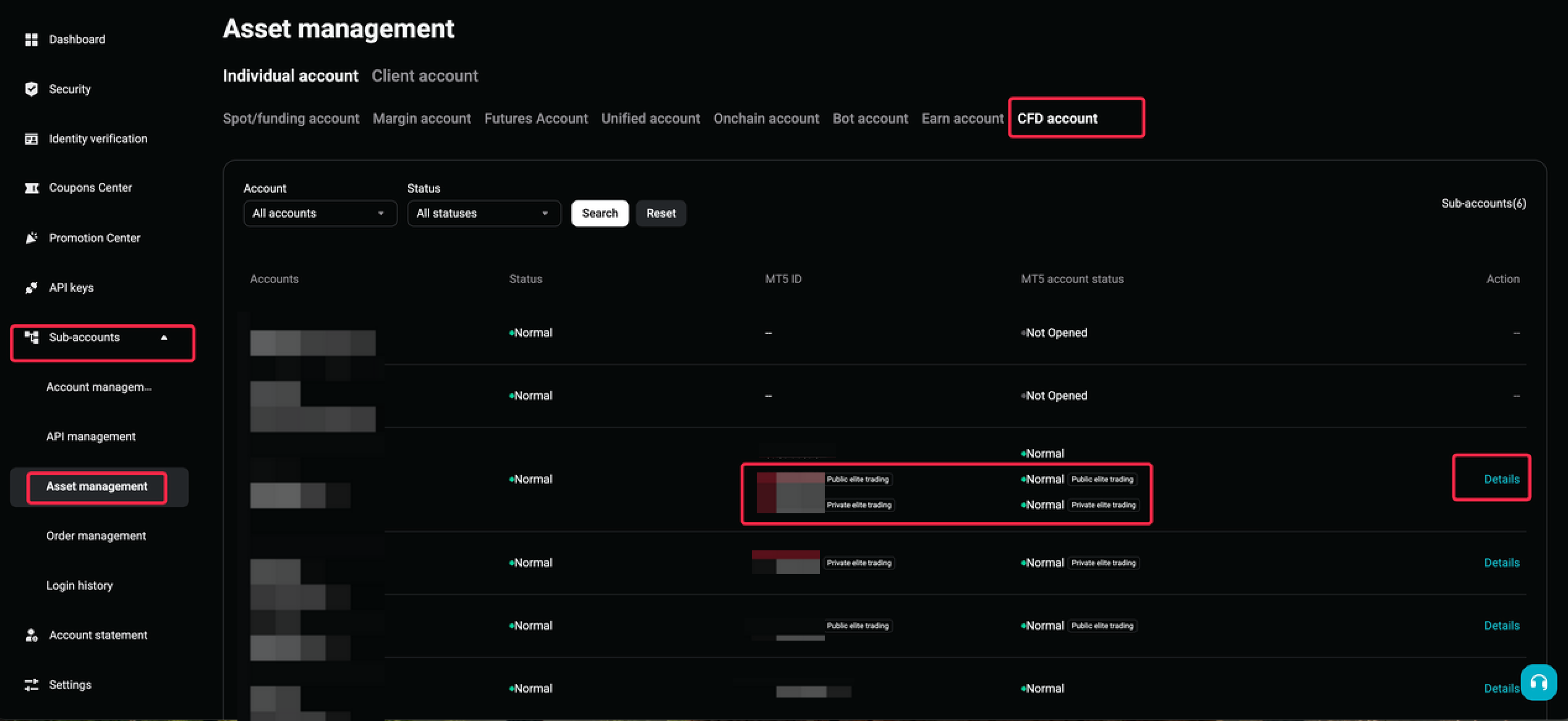
2. Find the target sub-account and select Asset Management → CFD Account.
3. In the CFD account list, find the corresponding sub-account and select Details in the action column.
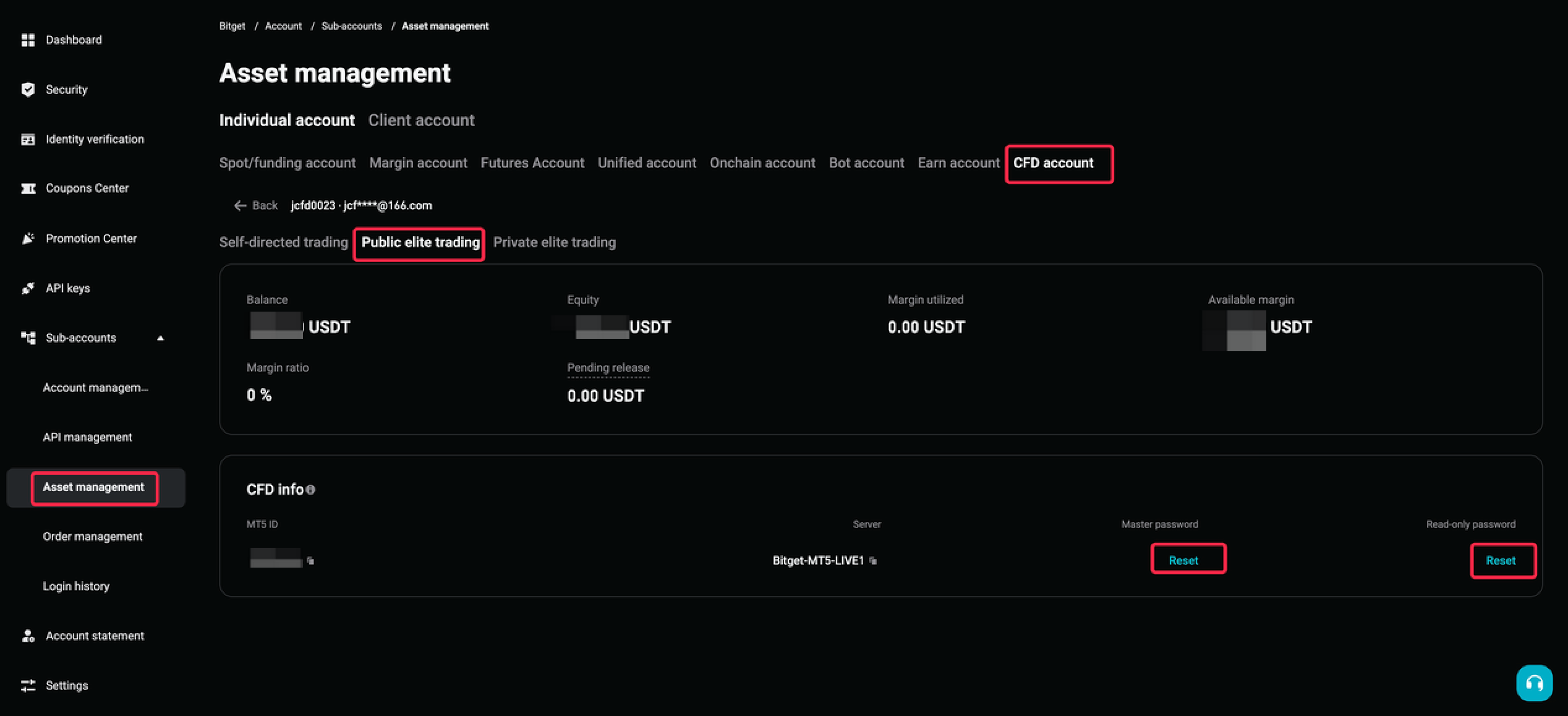
4. Account type tabs are displayed at the top of the details page (Personal trading / Public elite trading / Private elite trading). Select a tab to switch between account types.
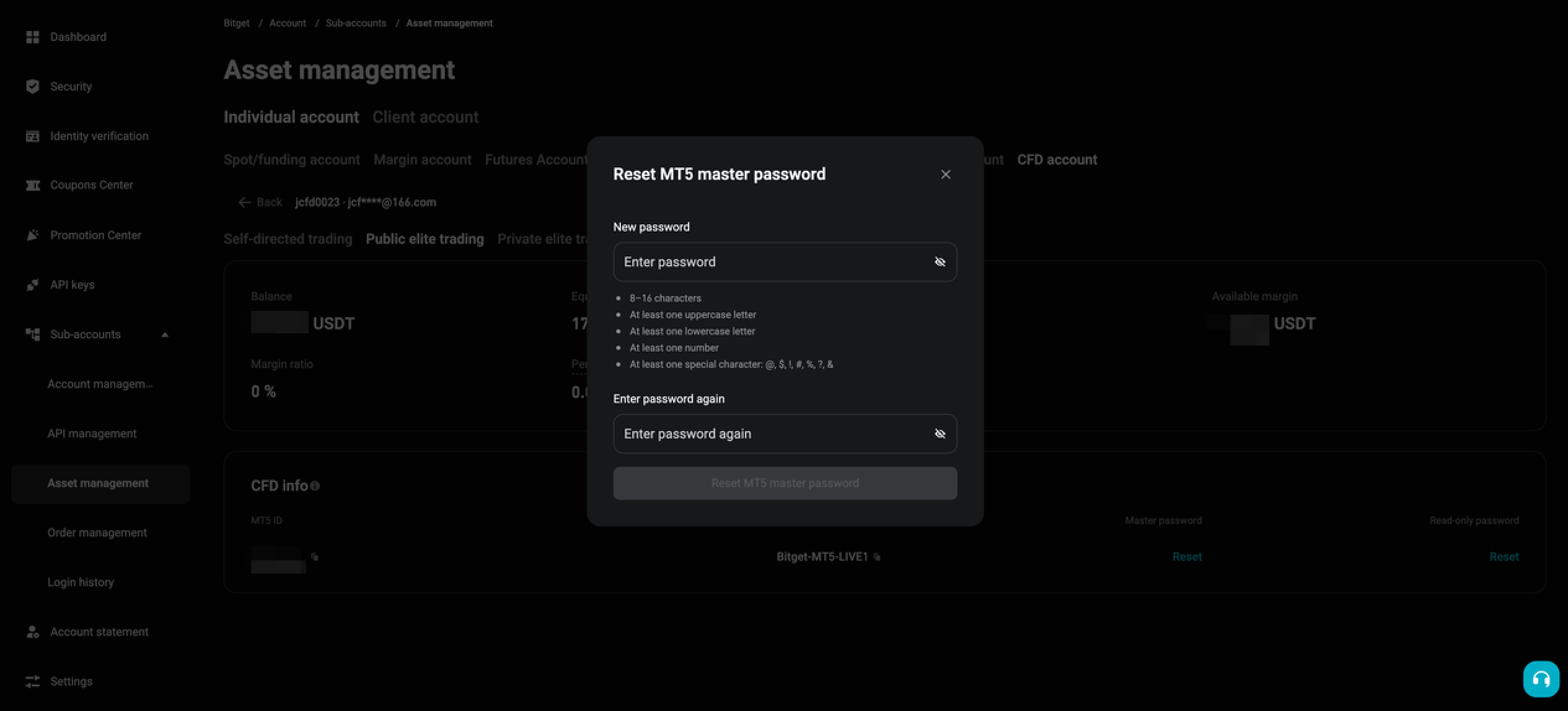
5. In the account information section, find the main password or read-only password and select Reset.
6. Once the password has been reset, a success message will appear.
Common questions about elite trading MT5 accounts
1. Why can't I see the Details option in the CFD account list?
The Details option is displayed if the sub-account has at least one of the following account types: a personal trading CFD account, public elite trading CFD account, or private elite trading CFD account If none of these account types exist, the action column will show "--". If you have created an elite portfolio but still can't see Details, refresh the page and try again, or contact customer support to confirm whether the elite trading MT5 account was created successfully.
2. Why does the password reset fail in the Elite Trading Zone or Elite Trader Center?
Sub-accounts don't have their own bound phone numbers or email addresses, so password resets through these two entry points require security verification that sub-accounts can't complete. Instead, use the path described in this article: Sub-account → Asset Management → CFD Account → Details. This path is authorized through the main account and doesn't require additional security verification.
3. What information is shown on the details page?
After opening the relevant elite trading MT5 account tab, you'll see the total account value (equity), balance, margin used, available margin, margin ratio, pending release amount, credit amount, MT5 ID, and server address. The MT5 ID and server address can both be copied. All amounts are denominated in USDT and shown to two decimal places.
4. Why does the account information on the details page show "--"?
If your elite trading MT5 account is archived (typically after the elite portfolio is closed), the asset data will show as "--", and the password reset option will be replaced by an Activate button. Activate the account before proceeding.
5. My sub-account has both public and private elite trading. How will they appear on the details page?
Two tabs will appear at the top of the details page: Public elite trading and Private elite trading. Select either tab to view the corresponding account details and password reset option. Only account types that actually exist will be displayed.
6. Is the password reset process the same for public and private elite trading?
Yes. Both public and private elite trading MT5 accounts use the same password reset process. Go to Sub-account → Asset Management → CFD Account → Details and reset the password through the main account. No additional security verification is required.
*This announcement is time-sensitive. Please note the date of publication. The platform assumes no responsibility for any direct or indirect losses arising from changing circumstances or outdated content.